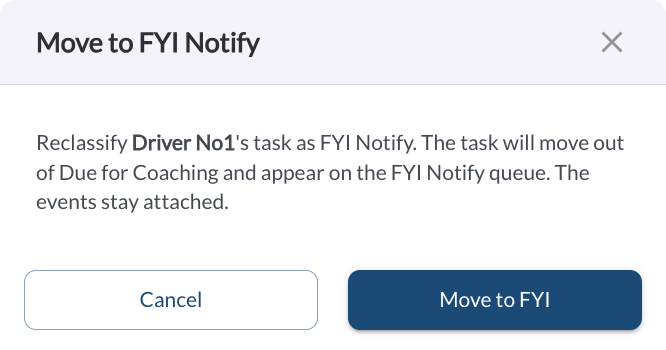
Move to FYI converts a coaching task into an FYI Notify task. Use it when a task does not warrant a coaching session, but you still want a record of it and visibility on the behavior.
How to Move a Task
- Go to Driver Safety > Due for Coaching.
- Find the task.
- Click the three-dot menu at the top right of the card.
- Click Move to FYI.
- Confirm.
What Changes
| Due date |
Recalculated using the FYI-Notify Due Days value, which is 14 days by default rather than 7. A task that was overdue can therefore stop being overdue. Read the article Safety Due Days Settings. |
| Coaching session |
No longer required. The task is closed by review rather than by completing a session, so it produces no coaching record and does not count towards any coach's Coached Events. |
| Assigned coach |
Unchanged. FYI tasks are still routed to a coach. |
| Safety Score |
Unchanged. FYI Notify is a coachable status for scoring purposes, so the events still affect the driver's score. |
Note
Moving a task to FYI does not stop it affecting the driver's Safety Score.
If the event was recorded incorrectly, use Dismiss instead – read the
article
How to Dismiss an Event.
Moving One Task or Changing the Rule
If a whole behavior should never create a coaching session, set its Coaching Status to FYI Notify in Settings > Coaching Workflow. That applies to every future event of that behavior, instead of moving tasks one at a time. Read the article Coaching Workflow Settings.