Dismiss marks an event as recorded incorrectly. A dismissed event stops affecting the driver's Safety Score and is excluded from coaching.
Use it when the event does not reflect what actually happened – for example a harsh braking event caused by a pothole, a behavior identified against the wrong person, or footage that shows nothing of concern.
Where You Can Dismiss
-
A task card – three-dot menu > Dismiss.
-
A coaching session – Dismiss in the event detail panel, which dismisses the event currently loaded in the player.
-
Library > Events – on the event row.
How to Dismiss an Event
- Review the footage first, so the decision is based on what was recorded.*
- Open Dismiss from one of the places listed above.
- Confirm in the dialog.
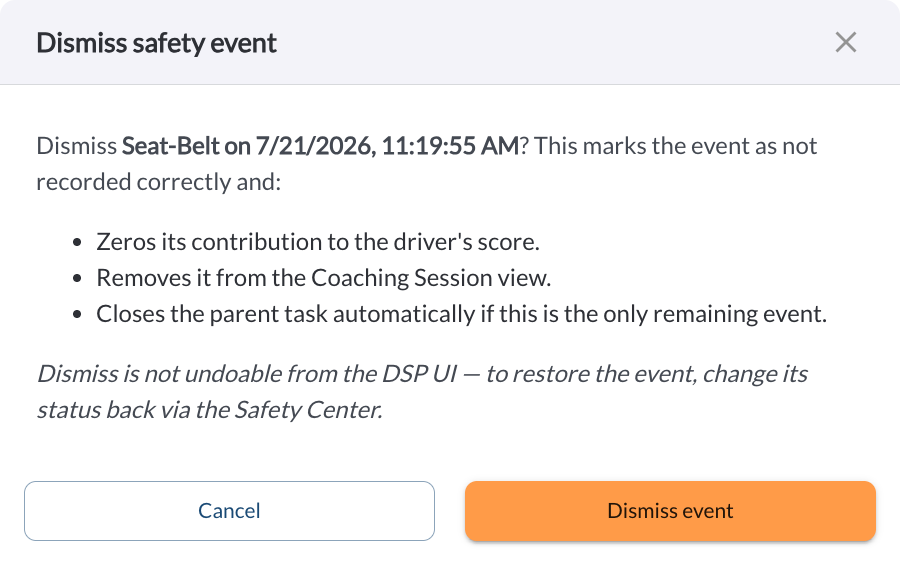
What Happens
| Event status |
Set to Dismissed. The event remains visible in Library > Events and on the driver profile, so there is still a record of it. |
| Safety Score |
The event contributes zero. Because scores are recalculated whenever a page is opened, the driver's score for past periods changes as well. |
| The coaching task |
The event is removed from it. If it was the last remaining event, the task closes without a coaching session. |
| Driver profile |
The event is counted under Dismissed, captioned as excluded from the score. |
Warning
Dismissing the last remaining event on a task closes the task, and no coaching session is recorded against it. If the driver should still be coached on the other events, dismiss the incorrect event first and then complete the session as normal.
Dismiss Compared With the Alternatives
| Dismiss |
The event was wrong. Removes its effect on the score. |
| Move to FYI |
The event was real but does not need a session. Keeps its effect on the score. Read the article How to Move a Task to FYI Notify. |
| Complete the session |
The event was real and has been discussed with the driver. Keeps its effect on the score. |
| Set the behavior score to 0 |
A whole behavior should never affect scores. Applies to every future event of that behavior, rather than one at a time. Read the article Coaching Workflow Settings. |
Note
A high number of dismissals for one behavior usually means its detection settings need tuning rather than that each event needs dismissing. Check the Behavior Report and review that behavior's detection threshold and window.
*Subject to available cellular network connectivity.