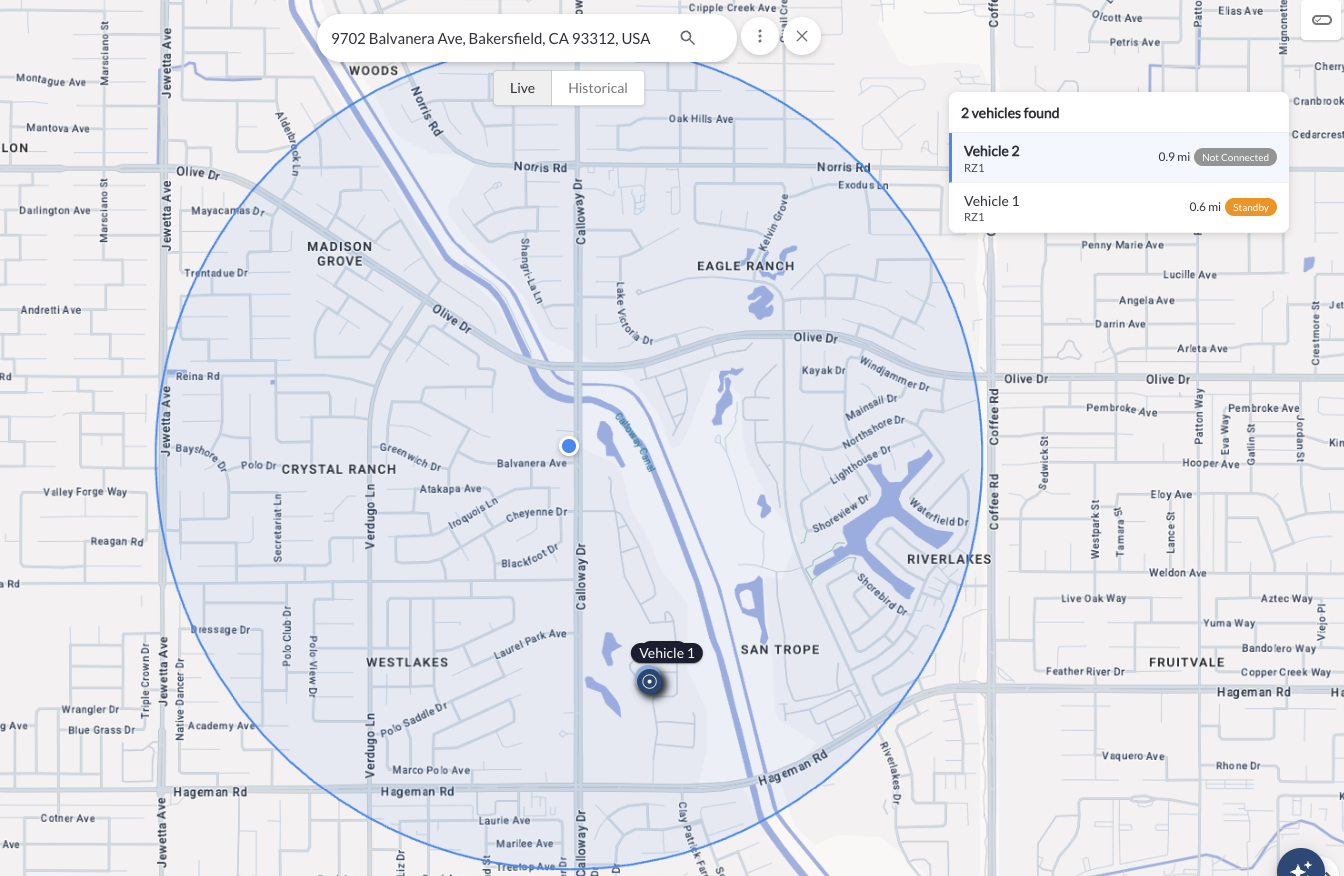
New: Vehicle Proximity Search live & historical
The Maps View now includes a Vehicle Proximity Search tool that lets you find vehicles within a defined radius of any address. In Live mode, the search displays all vehicles currently within the area, along with their straight-line distance from the address. In Historical mode, select a date, time, and duration to see all vehicles that visited the area during that period, including the closest point each asset reached relative to the address.
Learn more → Vehicle Proximity Search
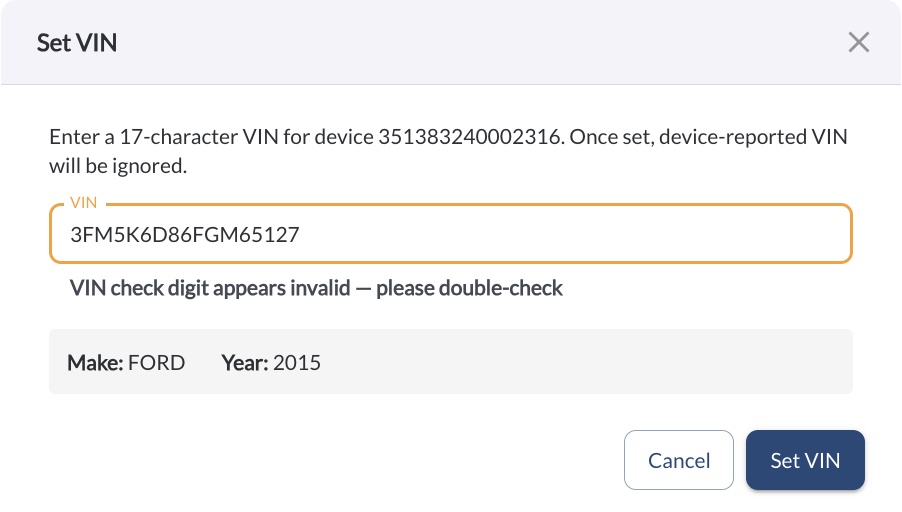
New: VIN Assignment and Validation
A VIN field is now available in the Asset profile, allowing a Vehicle Identification Number to be added manually for each vehicle. The platform validates the VIN format upon saving, ensuring accuracy and helping maintain complete, reliable vehicle records across the fleet.
Learn more → Managing Your Fleets Assets
New: Fleet AI Assistant (BETA)
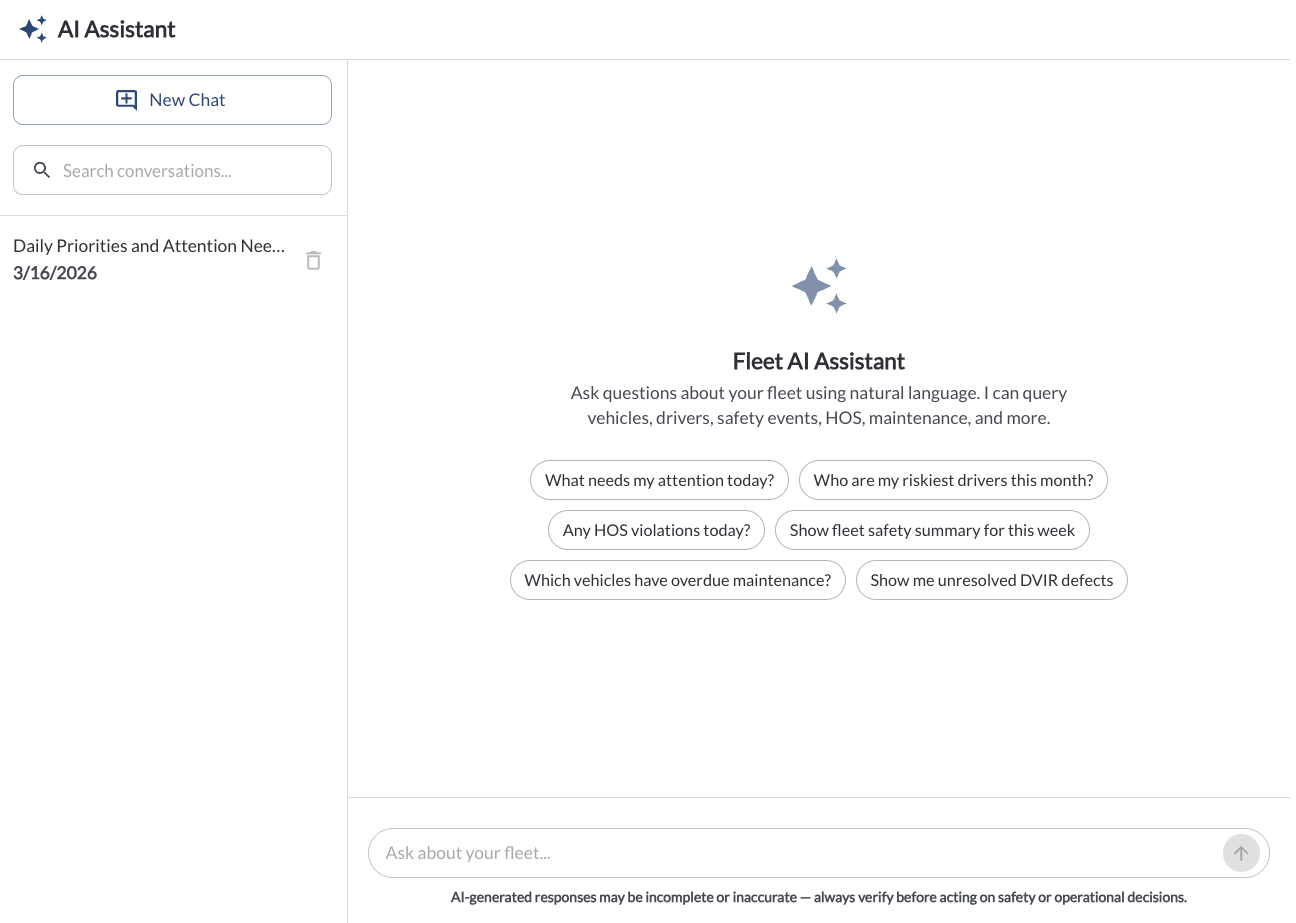
The Fleet Portal now includes a Fleet AI Assistant - an AI-powered chat tool that lets fleet managers ask questions about their fleet in plain language. The assistant queries data across vehicles, drivers, safety events, HOS, maintenance, and DVIR, returning detailed, data-backed answers in seconds.
Access the assistant from the new AI Assistant page in the side menu, or open it as a side panel from any page using the assistant button in the bottom-right corner. Previous conversations are saved and searchable.
Learn more → How to Use the Fleet AI Assistant
Note
This feature is in BETA and is available only upon request. If you do
not
see
it in your Fleet App, please contact your reseller to have the feature
enabled for your account.
New: Metric Unit System Support (BETA)
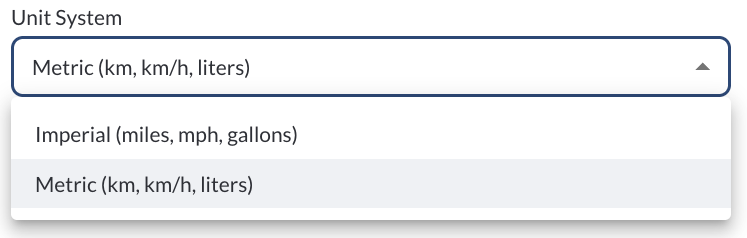
You can now choose between Imperial and Metric units from Fleet Settings. Once enabled, the entire application updates to display values using the selected system, including kilometers (KM), kilometers per hour (KPH), and liters, ensuring a consistent experience across all screens.
Note
This feature is in BETA and is available only upon request. If you do
not
see
it in your Fleet App, please contact your reseller to have the feature
enabled for your account.
New: CAN Connection setting
The CAN Connection setting gives fleet managers direct control over CAN data collection at the vehicle or asset level. When enabled, the device collects CAN bus data from the connected vehicle. When disabled, CAN data collection is turned off. This setting is enabled by default and can be found in the Asset Configuration in the Fleet Portal.

Learn more → Understanding Assets Configuration
New: Vehicle Address in Maps View
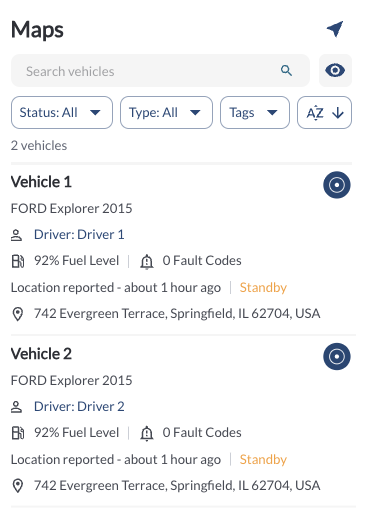
The Maps View now displays the current address of each vehicle directly in the vehicle list, and as a tooltip when hovering over a vehicle on the map. This makes it easier to identify vehicle locations at a glance without needing to click into individual vehicles.
New: Camera Orientation Controls
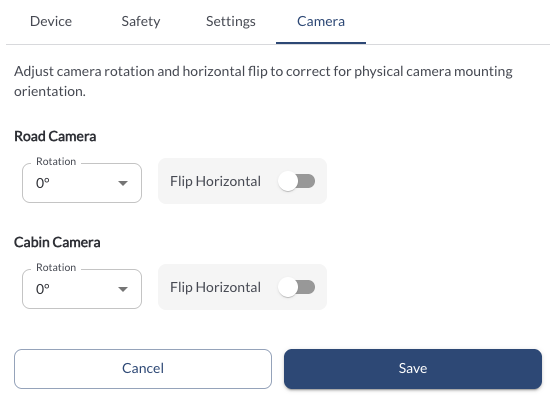
Users can now adjust the orientation of camera feeds to correct for physical camera mounting position. Orientation controls are available in three areas:
Asset Configuration – A new Camera tab has been introduced in the asset configuration panel. For each camera connected to the vehicle you can set the rotation angle and toggle horizontal flip to match the camera's physical mounting orientation.
Learn more → Understanding Assets Configuration
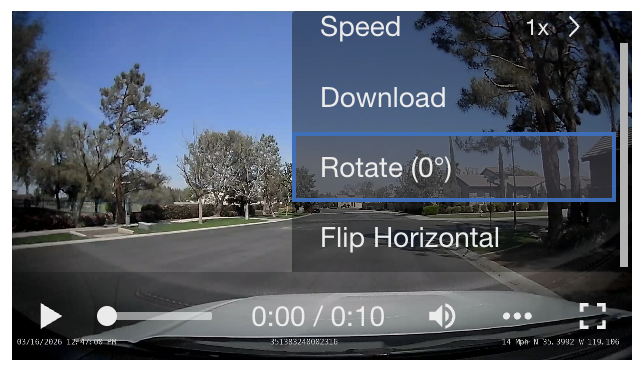
Video Player – Rotation and horizontal flip controls are now available directly in the video player across live video, recordings, and events, allowing users to adjust the view on the fly without changing the asset configuration.
Learn more → How to Use the Video Player
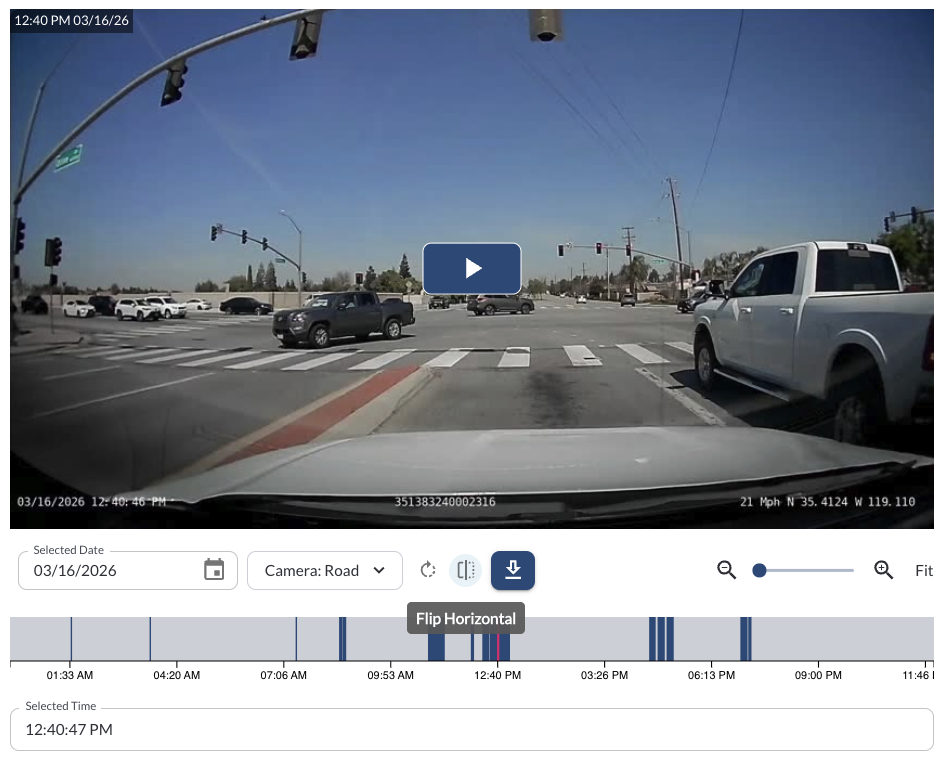
Recordings - Orientation controls are also available when reviewing footage directly from the recording timeline.
Learn more → Exploring the Recordings Page
Snapshots – The same orientation controls are available when viewing snapshots.
Learn more → How to Stream Live View from the Map
Improvement: Vehicle Status Indicators on the Map
The vehicle status indicators in the Maps View have been updated to reflect real-time vehicle dynamics. Status labels have changed from Active, Standby, and Not Connected to Moving, Stopped, and Idling, giving fleet managers a clearer, at-a-glance view of what each vehicle is doing on the map.
Learn more → Map View Overview
Improvement: Safety Center Review Feed - Focused Event Visibility
The Review Feed in the Safety Center no longer displays the following event types: Driver-Button, Power-Disconnect, Digital-In-1, and Digital-In-3. These operational events have been removed from the feed to keep the focus on safety-related events, making it easier to review and act on what matters most.
Learn more → Safety Center Overview
Improvement: Resizable Side Panel on the Map
The side panel on the Maps View can now be resized, giving fleet managers more control over how content is displayed. Drag the panel edge to adjust its width and balance visibility between the map and the panel content.
Learn more → Map View Overview
Bug Fixes
Health alert email |
Fixed missing health message in health alert emails. |
Mobile driver check‑in report |
Fixed missing driver name in the mobile view of the driver check‑ins report. |
Event review |
Fixed incorrect quota message displayed on the event review page. |
Dashboard – Device Status widget |
Fixed missing View More link in the Dashboard Device Status widget. |
Safety events |
Fixed missing notes in safety events CSV downloads. |
Tables |
Fixed an issue where columns marked as hidden were still visible. |
Tags |
Fixed an issue preventing tag edits from saving correctly. |