New: Disable Cameras by Schedule or Geofence
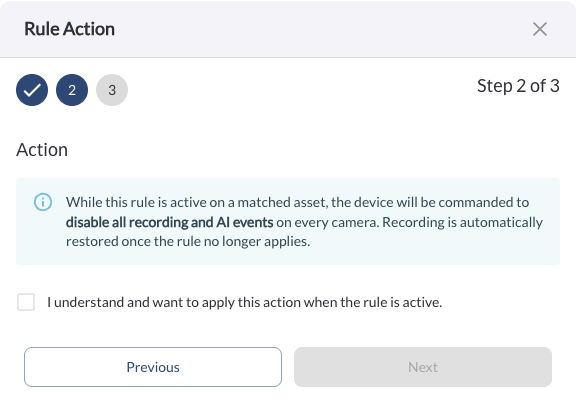
Fleet managers can now create a rule in Alerts & Rules to automatically disable all video recording and AI events on every camera when the rule is active. Two rule types are supported:
-
Geofence – Rule: Disables recording when a vehicle enters a selected geofence.
-
Timebase – Rule: Disables recording during configured days and hours, with timezone support.
Recording is automatically restored once the rule no longer applies. The rule can be limited to specific assets or tags, or applied across the entire fleet.
Learn more → How to Add or Edit a Rule
New: Picture-in-Picture View for Safety Events
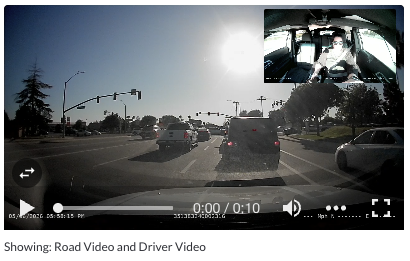
Safety events now display both the Road Camera and In-Cabin Camera feeds simultaneously in a picture-in-picture layout. The in-cabin feed appears as an overlay in the corner of the main road camera view. Use the switch view button to swap between which feed is displayed as the main view and which appears as the overlay. This view is available when reviewing safety events both from the Maps page and the Safety Center.
New: Risk ID without Recording
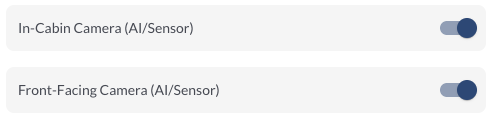
Each camera can now be configured independently to operate in AI/Sensor mode — where the camera runs AI detection without recording video — or in full recording mode. Separate toggles for In-Cabin Camera (AI/Sensor) and Front-Facing Camera (AI/Sensor). These setting can be configured in Fleet Settings for a fleet-wide default, or overridden per vehicle in Asset Configuration.
Note
This feature requires firmware version v2.6.169 or later.
Devices running
an earlier firmware version will not support Camera-as-Sensor mode.
New: Multiple Trips View
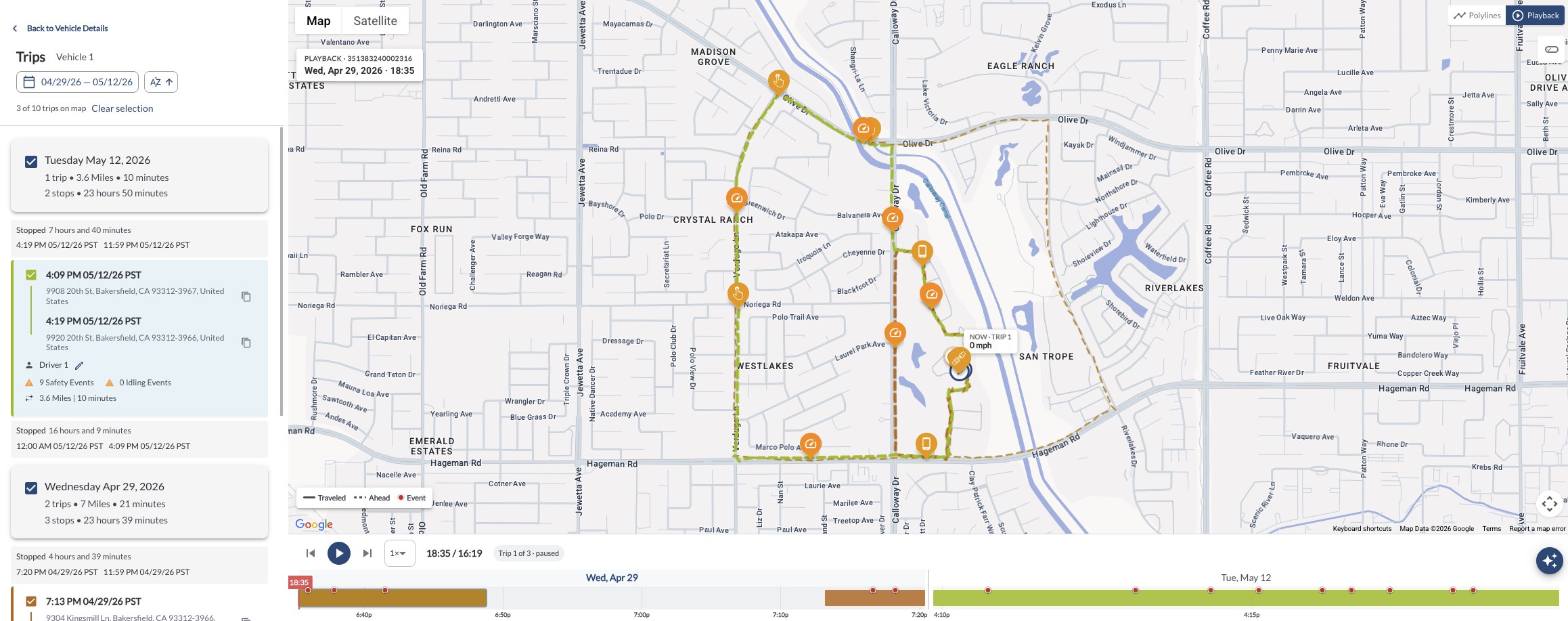
The Map page now allows you to select and view multiple trips simultaneously on the map. Select trips using their checkboxes - all selected trips will be displayed on the map at once, each highlighted in a different color for easy identification.
A summary panel on the right side of the map displays key statistics across all selected trips, including total distance, drive time, safety events, idling events, and idling time. On the left side, a list of all selected trips shows each trip's start time, click any entry to focus the map on that trip.
Use the toggle in the top-right corner to switch between two viewing modes:
-
Polylines – Displays all selected trip routes on the map.
-
Playback – Opens a timeline at the bottom of the map, allowing you to play back all selected trips. Adjust playback speed, navigate between trips, and view safety events marked as red dots along the timeline.
Learn more → How to View Multiple Trips
New: Scheduled Reports
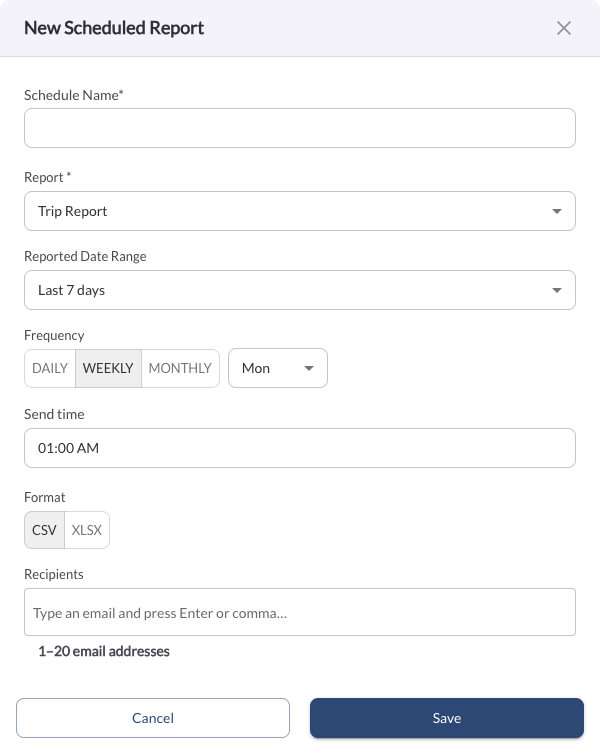
Fleet managers can now schedule reports to be delivered automatically on a recurring basis. From the new Scheduled Reports page, set up a schedule by selecting the report type, date range, frequency (daily, weekly, or monthly), send time, format (CSV or XLSX), and up to 20 email recipients.
Learn more → Scheduled Reports
For supported reports - including the Trip Report, IFTA, and Time on Site Report — a schedule can also be created directly from the report page using a specific saved view. Editing the saved view's filters will apply to the next scheduled send.
Learn more → How to Use the Custom Report Widget
Improvement: Speed Context in Safety Event Details
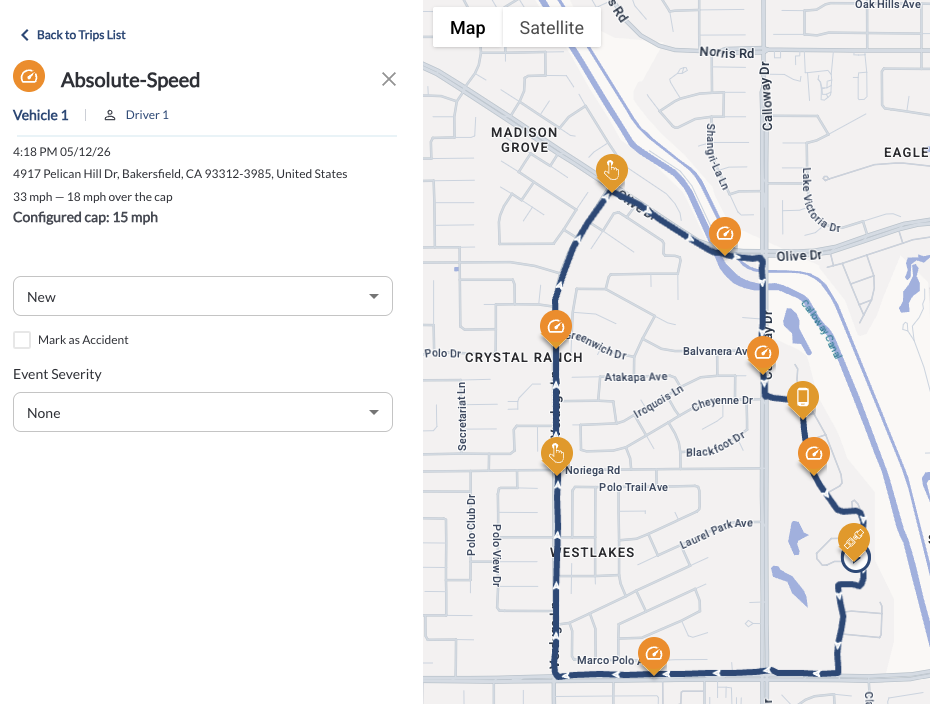
The safety event detail panel now displays the actual recorded speed alongside the posted speed limit or configured speed cap for Posted-Speed and Absolute-Speed events. This gives fleet managers clearer context on the severity of each speeding event without needing to cross-reference additional data.
Improvement: Expanded Proximity Search Radius
The maximum search radius in the Vehicle Proximity Search tool on the Maps View has been expanded to 0.3 mile , giving fleet managers a wider search area when locating vehicles near a specific address.
Improvement: Driver Email Is No Longer a Required Field
The email address field is no longer required when creating a new driver. Fleet managers can now create a driver record without providing an email address, offering more flexibility when onboarding drivers who may not have one on file.
Improvement: CSV Upload Validator
The bulk upload flow now includes a validation step that checks the uploaded CSV file before processing it. If the file contains errors or formatting issues, a clear message is displayed describing the problem, allowing you to correct the file and re-upload without losing your progress. Previously, invalid files would fail silently with a generic error.
Improvement: Fleet AI Assistant Enhancements
The Fleet AI Assistant has been updated with a range of improvements to help deliver more detailed and contextual answers. We are continuously investing in the AI Assistant to expand its capabilities and improve the quality of responses across all fleet data domains.
**AI-generated responses may be incomplete or inaccurate - always verify before acting on safety or operational decisions.
Bug Fixes
| Safety Events |
Fixed an issue where event status changes were not being saved correctly. |
| Alerts & Rules |
Fixed an issue where the geofence alert name was being cleared when clicking "+ Add Geofence". |