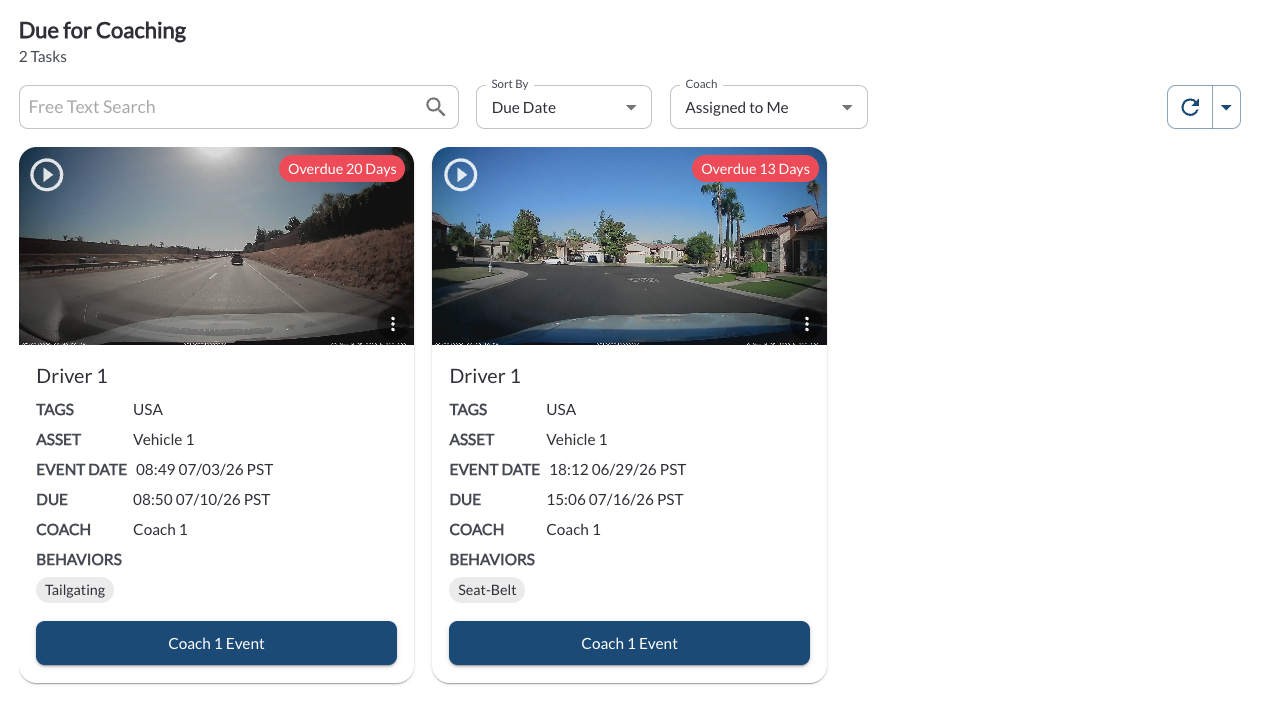
Due for Coaching is the main work queue of the Driver Safety Program. It shows one card per driver who has open coachable events, sorted by due date so that the most urgent coaching comes first.
Filtering
The count of open tasks is displayed above the filter bar as X Tasks. The following filters are available:
| Filter by Coach |
Defaults to Assigned to Me. Switch to All Coaches, Unassigned, or a specific user. |
| Search by Free Text |
Searches by free text. |
| Sort By |
Due Date (default), Driver Name, or Recently Created. |
Note
Because Filter by Coach defaults to Assigned to Me, the page appears
empty if no tasks are assigned to you. Switch to All Coaches to see the
full queue.
Task Card Details
Each card represents one driver and all of their open coachable events of the same coaching type.
| Thumbnail |
A still image from the most recent event on the task. Click Preview to open the event video.* |
| Overdue badge |
Displayed in red when the task is past its due date, showing how many days it is overdue. |
| Driver |
The driver's name. Click it to open the driver profile. |
| Tags |
The groups the driver belongs to. |
| Asset |
The vehicle associated with the most recent event. |
| Event Date / Time |
When the most recent event on the task occurred. |
| Overdue Date |
The date the task became, or will become, overdue. |
| Assigned Coach |
The coach responsible for the task, or Unassigned. |
| Behaviors |
The behaviors associated with the coaching session. |
| Coach X Events |
Opens the coaching session for this task. Read the article How to Complete a Coaching Session. |
Quick Action Menu
Click the three-dot menu at the top right of a card to open the available actions:
Note
When dismissing the last remaining event on a task, the task closes without
a coaching session being recorded. The record is kept for audit purposes
but no coaching credit is given.
Picking Up an Unassigned Task
A task with no matching coach assignment is shown as Unassigned. Any user with access to the module can open it and complete the session. The user who completes the session becomes the coach of record for it.
To route tasks automatically instead, read the article Coach Assignment Settings.
Refresher Widget
Keep your data up to date by using the Refresher Widget. This allows you to reload the table data so you're always viewing the latest information. To learn more, read the article How to Set the Refresher Widget.
*Subject to available cellular network connectivity.