The Open Tasks Report shows the coaching work still outstanding, broken down per driver and per coaching type. It helps fleet managers see where the backlog sits and how long tasks have been waiting.
The report includes one row for every driver who has at least one open coaching task.
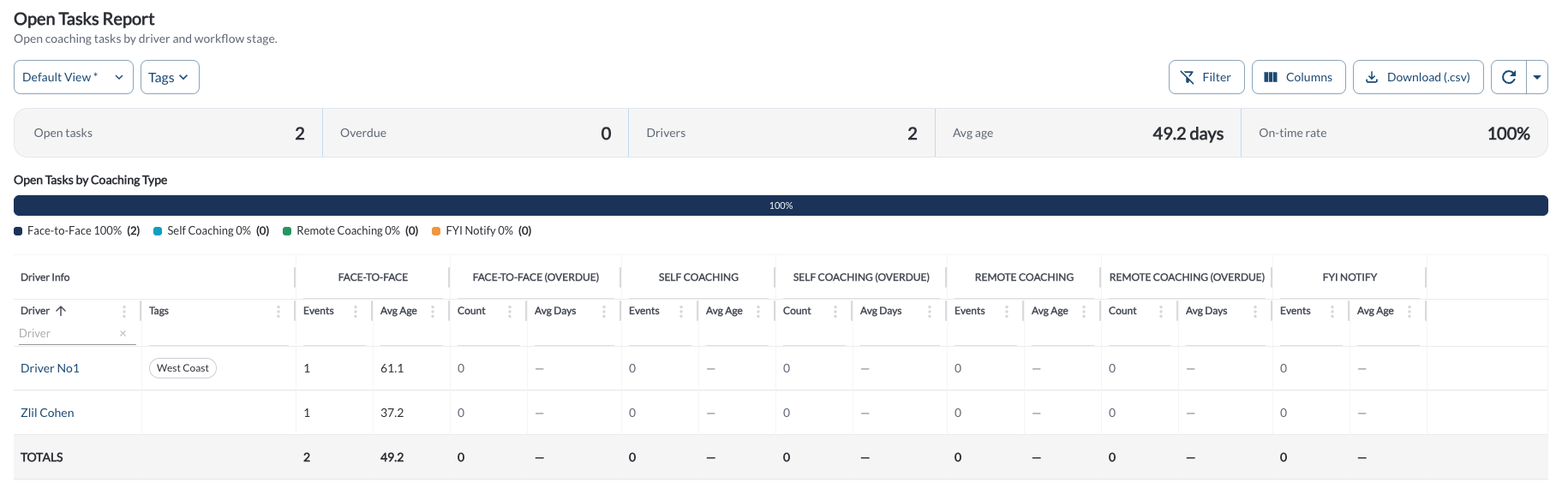
Summary Bar
A single card across the top of the page gives the state of the backlog at a glance, before you read the per-driver detail below it.
| Open tasks |
Total coaching tasks still open. |
| Overdue |
How many of those tasks are past their due date. |
| Drivers |
Distinct drivers with at least one open task. Compare it with Open tasks to see whether the backlog is spread across the fleet or concentrated on a few drivers. |
| Avg age |
The average age of the open tasks, in days, measured from when each task was created. |
| On-time rate |
The percentage of open tasks that are not yet overdue. It moves in the opposite direction to Overdue, so 100% means nothing in the queue has passed its due date. |
Note
A high Avg age alongside a low Overdue count means tasks are sitting for
a long time but the due-day windows are generous enough to absorb it. Read
the two together rather than either alone. Read the article
Safety Due Days Settings.
Open Tasks by Coaching Type
Below the summary bar, a single stacked bar shows how the open tasks divide across the four coaching types. A legend under the bar names each type with its percentage and its task count:
- Face-to-Face
- Self Coaching
- Remote Coaching
- FYI Notify
A type with no open tasks shows 0% and a count of zero in the legend, and contributes no visible segment to the bar.
Use it to see what kind of work the backlog actually is. A queue that is almost all Self Coaching needs drivers to complete their reviews, while a queue that is almost all Face-to-Face needs coach time. The coaching type a behavior produces is set in Settings > Coaching Workflow – read the article Understanding Coaching Statuses and Queues.
Open Tasks Report Details
The table supports downloading, sorting, filtering, resizing columns, and other customization options. For a complete guide, read the article How to Use Tables in the App.
Columns are grouped by coaching type. Each coaching type has an events pair, and every type except FYI Notify also has an overdue pair.
| Driver |
The driver's name. Click it to open the driver profile. Sorted A–Z by default. |
| Tags |
The groups the driver belongs to. |
| Face-to-Face: Events / Avg Age |
Open face-to-face events, and their average age in days. |
| Face-to-Face (Overdue): Count / Avg Days |
How many of those events are overdue, and by how many days on average. |
| Self Coaching: Events / Avg Age |
Open self-coaching events, and their average age in days. |
| Self Coaching (Overdue): Count / Avg Days |
How many are overdue, and by how many days on average. |
| Remote Coaching: Events / Avg Age |
Open remote-coaching events, and their average age in days. |
| Remote Coaching (Overdue): Count / Avg Days |
How many are overdue, and by how many days on average. |
| FYI Notify: Events / Avg Age |
Open FYI Notify events, and their average age in days. FYI Notify has no overdue columns, because it is informational. |
Note
Avg Age is measured from the moment the task was created, not from the
date of the event. Hover over the column header to see the unit.
Filtering
-
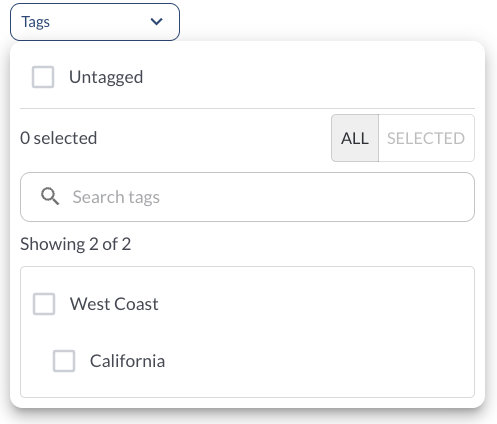
Use the Tag Filter to narrow down the table to display only trips associated with specific tags.
Refresher Widget
Keep your data up to date by using the Refresher Widget. This allows you to reload the table data so you're always viewing the latest information. To learn more, read the article How to Set the Refresher Widget.
Custom Report Widget
Save time by using the Custom Report Widget to store report configurations with your selected filters, columns, sorting, and grouping. This allows you to quickly return to commonly used report setups and set a default configuration for easy access. For more information, read the article How to Use the Custom Report Widget.