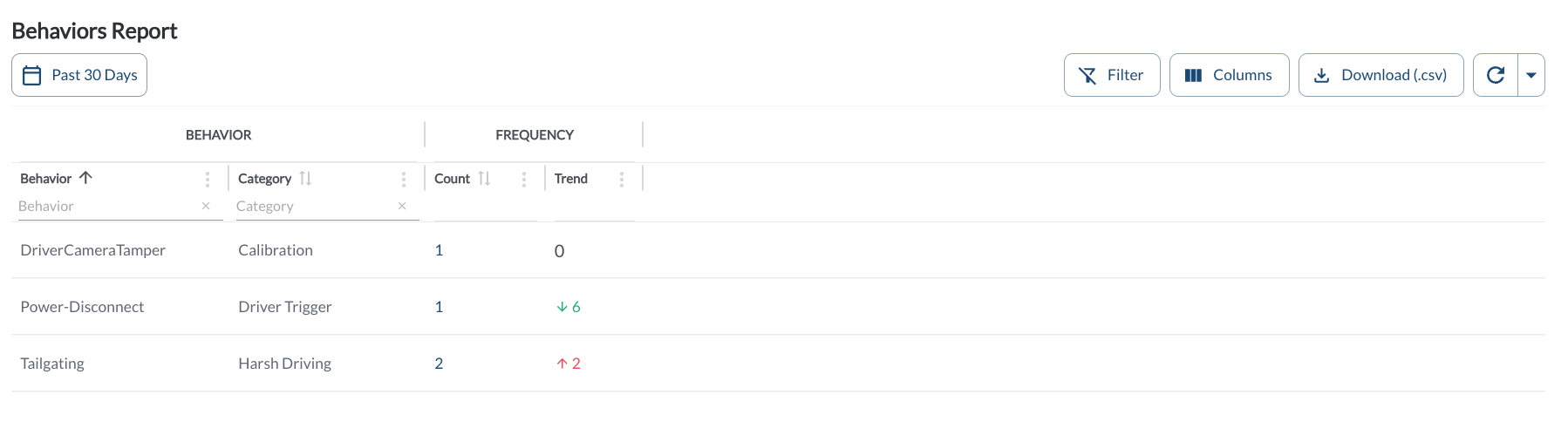
The Behavior Report is a fleet-wide frequency view. It shows one row per behavior recorded in the selected period, together with how that frequency has changed. Use it to see which driving behaviors are most common across the whole fleet before deciding where to focus coaching.
Behavior Report Details
The table supports downloading, sorting, filtering, resizing columns, and other customization options. For a complete guide, read the article How to Use Tables in the App.
| Behavior |
The behavior that created the events. |
| Category |
The category the behavior belongs to – for example Harsh Driving or Distracted Driving. |
| Count |
How many events were recorded in the period. Click the value to open Library > Events filtered to this behavior. |
| Trend |
The change against the previous period of equal length. A downward arrow is shown in green, because fewer events is the goal. |
Note
Only behaviors that actually occurred in the period appear in the report. A behavior with zero events has no row, so an empty report means no matching events were recorded.
Drilling Into a Behavior
Clicking a Frequency value opens Library > Events pre-filtered to that behavior, where you can review individual events and their video.* Read the article Library: Events.
Note
The date range on the Behavior Report is not carried across to Library Events,
which applies its own date range.
Using the Report to Tune Your Program
- A behavior with a very high frequency may benefit from a lower detection threshold or a longer snooze period, so that coaches receive fewer, more representative events. Read the article Understanding Detections and Coachable Events.
- A behavior your team does not intend to coach can be set to FYI Notify or Dismissed in the Coaching Workflow.
- A behavior trending upward across the fleet is usually a better candidate for a program-wide response than for individual coaching alone.
Filtering
-
Use the Date Picker to select a different date range. The default date range is Today. For more details on using the Date Picker, read the article How to Use the Date Picker.
Refresher Widget
Keep your data up to date by using the Refresher Widget. This allows you to reload the table data so you're always viewing the latest information. To learn more, read the article How to Set the Refresher Widget.
*Subject to available cellular network connectivity.