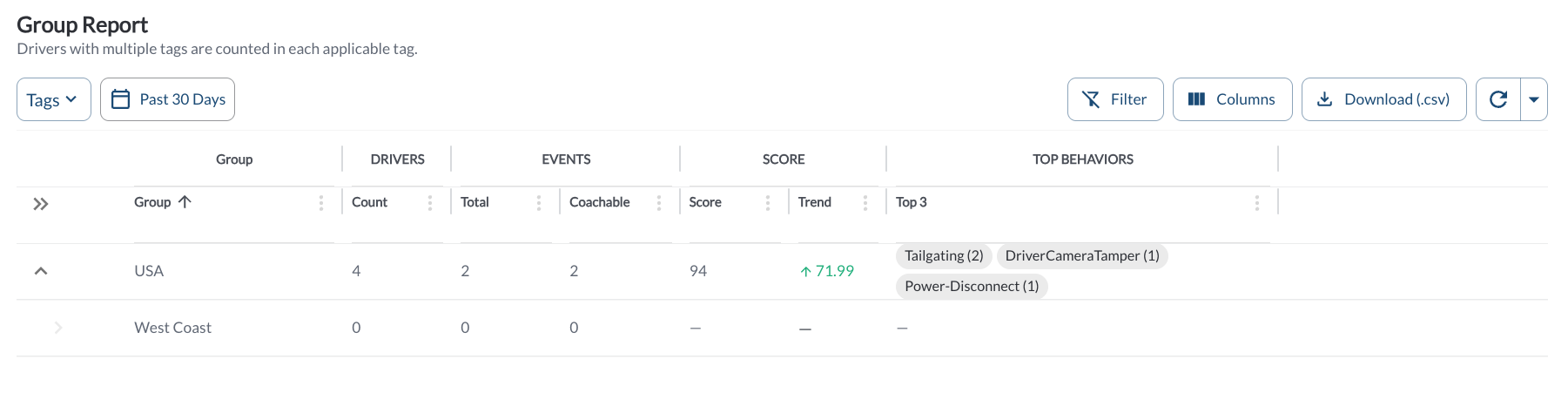
The Group Report aggregates safety performance per group, rendered as an expandable hierarchy that mirrors your tag structure. It helps managers compare regions, depots, shifts, or any other grouping used in the fleet.
Each row's numbers roll up over the group itself plus all of its child groups. Selecting Region / West shows the totals for West and everything beneath it; expanding the row reveals the breakdown per child group.
Group Report Details
The table supports downloading, sorting, filtering, resizing columns, and other customization options. For a complete guide, read the article How to Use Tables in the App.
| Group |
The group name. Click the caret to expand the child groups. |
| Total Drivers |
Distinct drivers in the group and its child groups. |
| Total Events |
All safety events in the date range across those drivers. |
| Coachable Events |
Events with a coachable Coaching Status. Excludes dismissed events and recognitions. |
| Score |
Average Safety Score across those drivers, from 0 to 100, shown to two decimal places. |
| Trend |
The change in Score against the previous period of equal length. A downward arrow is shown in red. |
| Top Behaviors |
The three most frequent behaviors in the group, shown as chips. |
Note
Drivers with multiple tags are counted in each applicable group. A driver tagged at more than one level of the same branch is included in the roll-up of every level above them.
Note
Drivers with no events in the period contribute a Score of 100 to the group average. Read Score alongside Total Drivers and Total Events, particularly on small groups.
Filtering
-
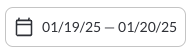
Use the Date Picker to select a different date range. The default date range is Today. For more details on using the Date Picker, read the article How to Use the Date Picker.
-
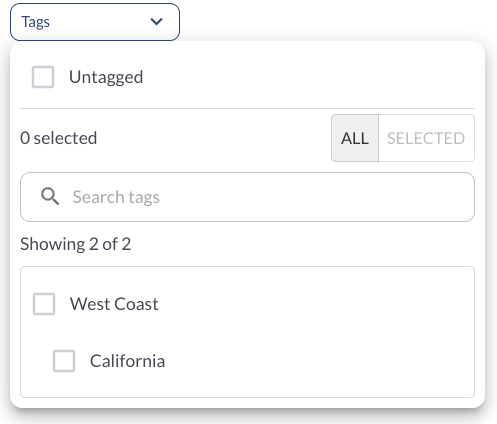
Use the Tag Filter to narrow down the table to display only trips associated with specific tags.
Refresher Widget
Keep your data up to date by using the Refresher Widget. This allows you to reload the table data so you're always viewing the latest information. To learn more, read the article How to Set the Refresher Widget.