New: Behavior Filters with Risk Zone Highlighting and TTC Chart
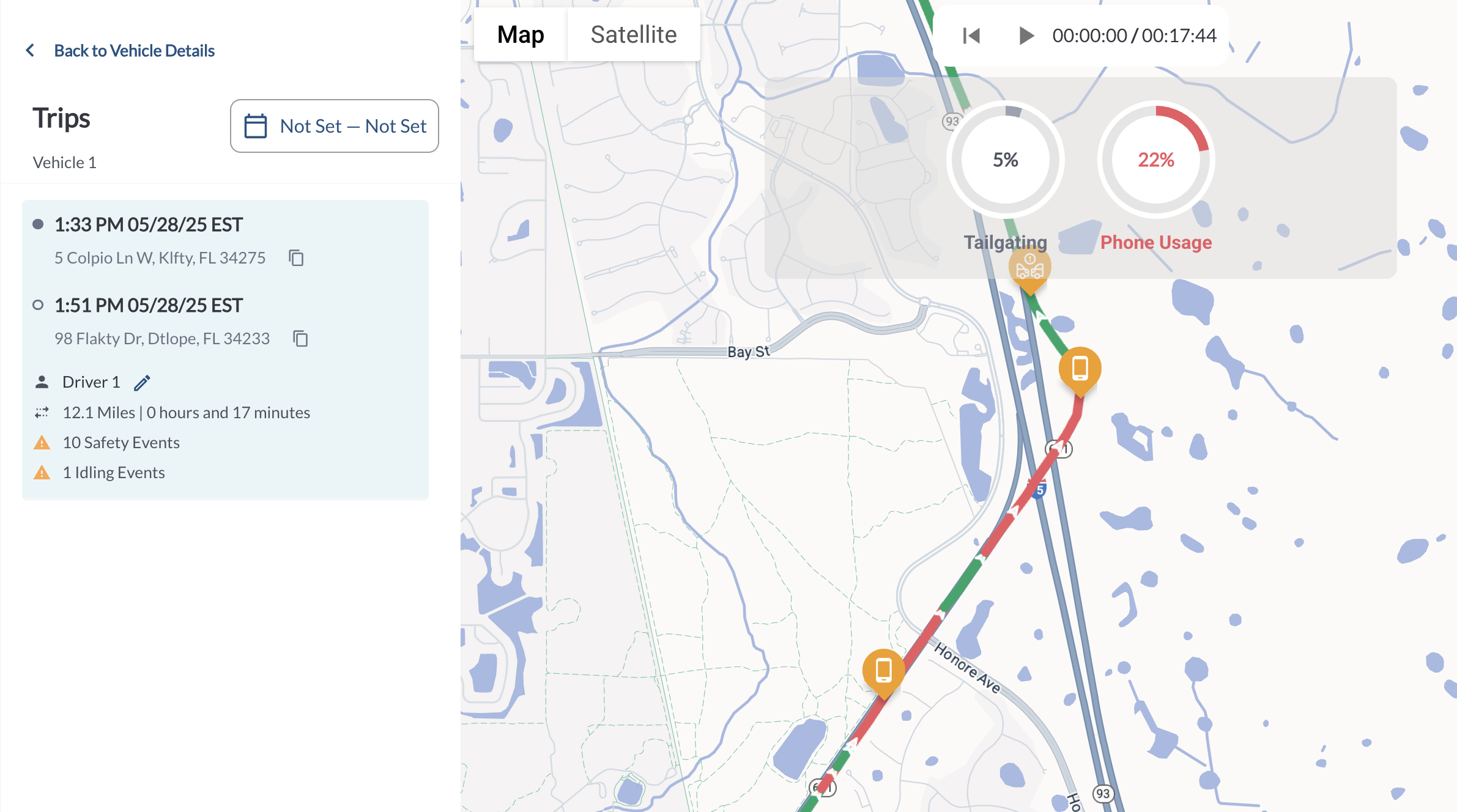
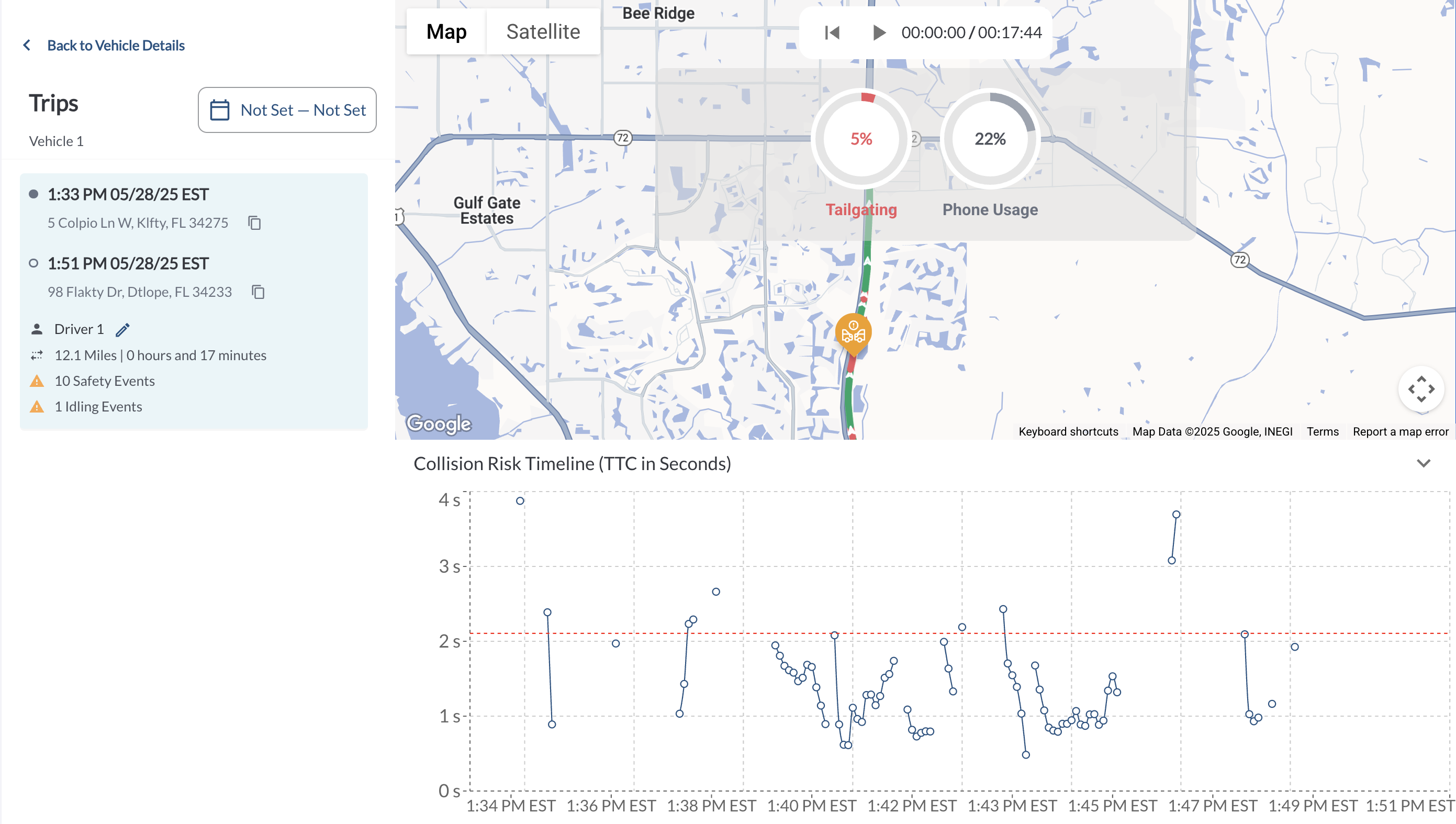
Trip View now includes interactive behavior filters that highlight risk zones on the map and display collision risk insights. Users can filter the trip by Tailgating, Phone Usage or Distracted Driver. Each button shows the percentage of trip time the behavior occurred. Clicking a button highlights relevant trip segments in red; safe segments remain green. When the Tailgating filter is selected, a Time to Collision (TTC) chart appears below the map. It visualizes TTC values across the trip, synced with playback and tooltips showing exact timestamps and TTC readings.
Learn more in Filtering Trip View by Risky Behaviors.
New Alert Type - Health
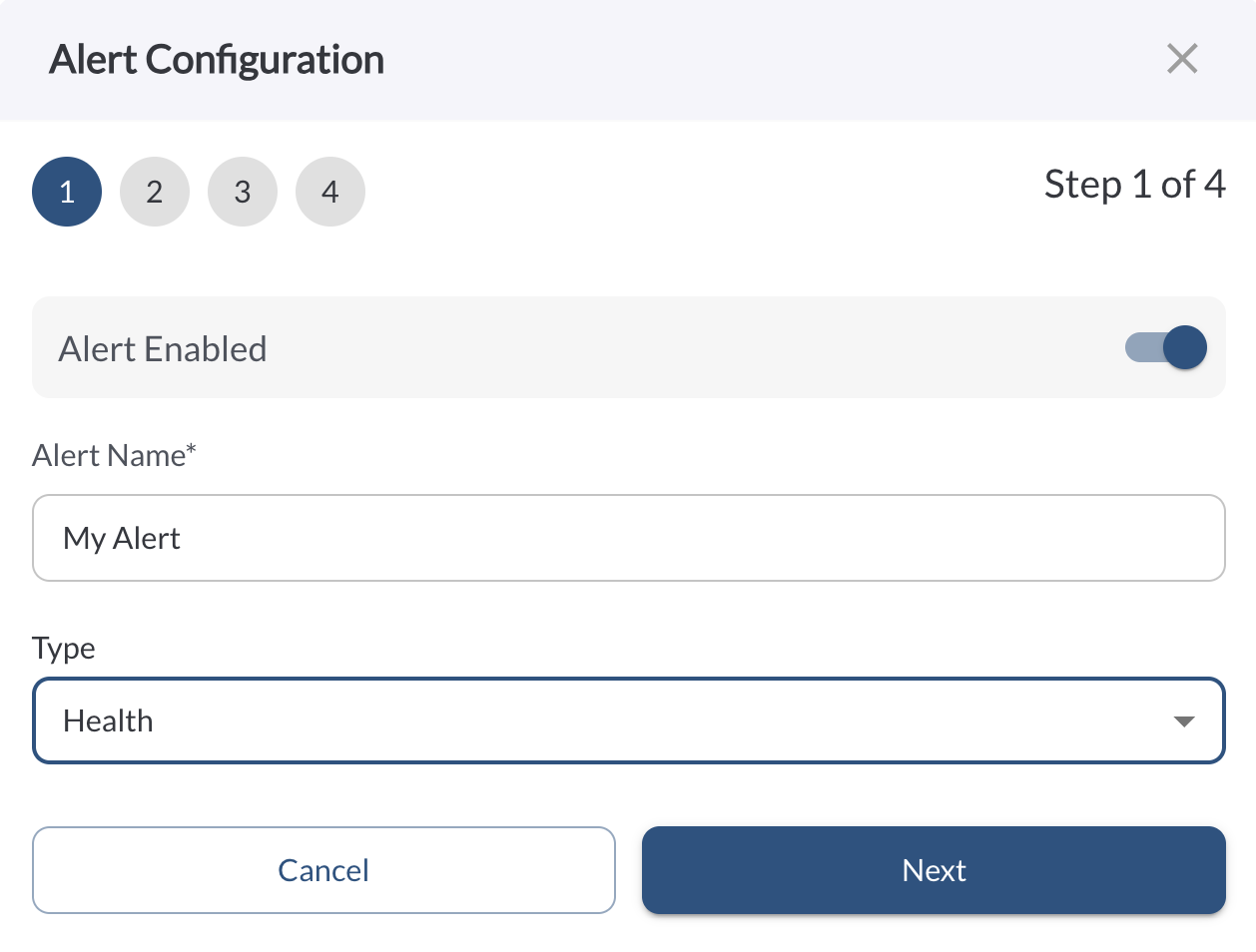
Triggers an alert when a device health status changes to Unhealthy. You can limit the alert to specific geofences or time windows, apply it to selected vehicles or tags, and assign users to receive the alert when triggered.
Learn more in How to Add or Edit an Alert and explore all available alert types in Alert Types.
New Alert Type - Idling
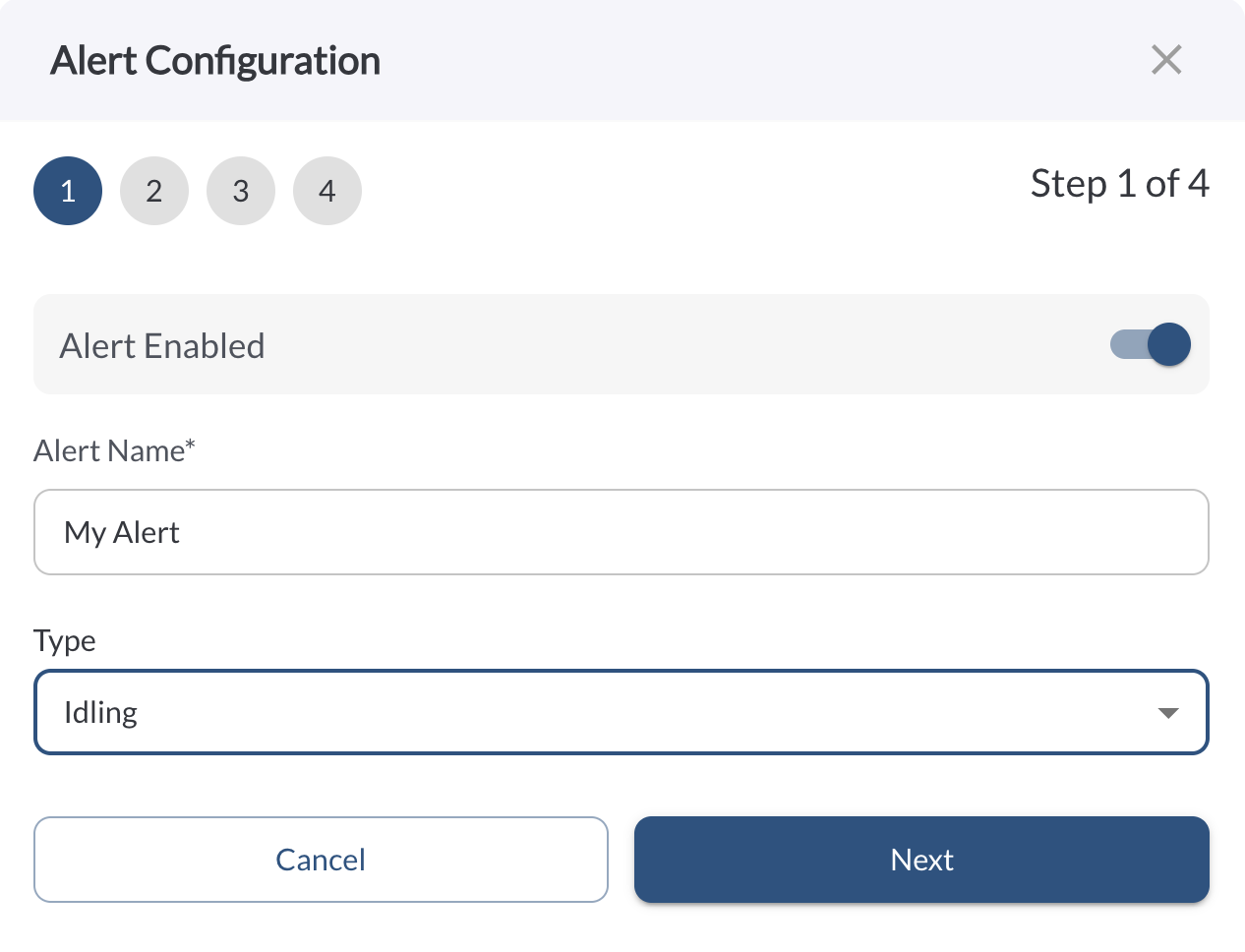
Triggers an alert when a vehicle transitions into an idling state. You can limit the alert to specific geofences or time windows, apply it to selected vehicles or tags, and assign which users should receive the alert when it’s triggered.
Learn more in How to Add or Edit an Alert and explore all available alert types in Alert Types.

Tip
Use this alert to get notified when a vehicle idles within a specific geofence or during a restricted time range.
New Alert Type - Movement
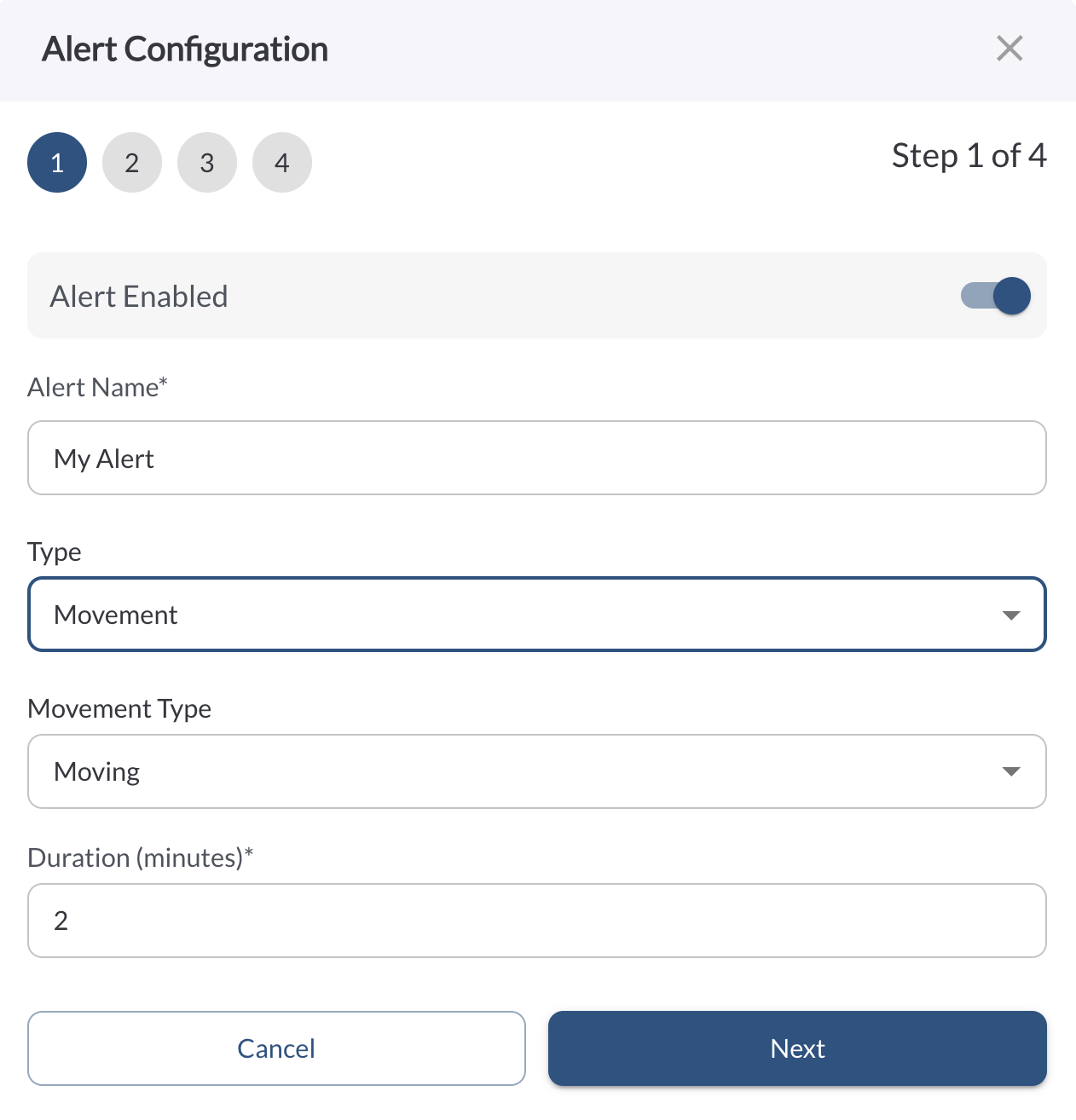
Triggers an alert based on the vehicle’s movement state: Stopped/Moving and a defined duration. You can limit the alert to specific geofences or time windows, apply it to selected vehicles or tags, and assign which users should receive the alert when it’s triggered.
Learn more in How to Add or Edit an Alert and explore all available alert types in Alert Types.
Tip
Use this alert to detect when a vehicle is moving outside of an approved geofence or during off-hours.
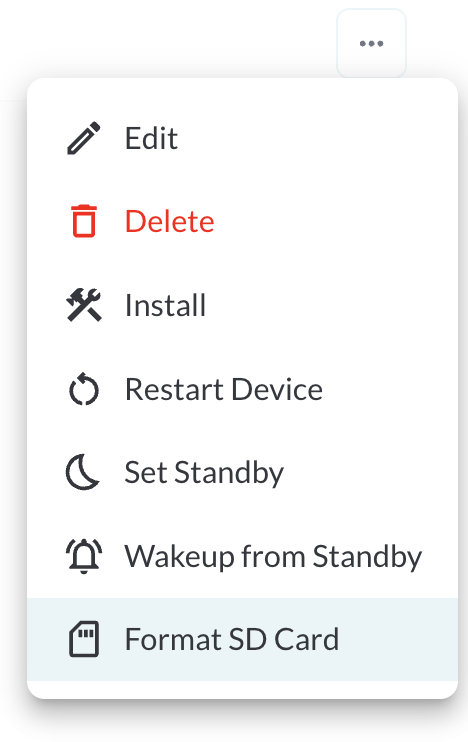
New Device Action: Format SD Card
You can now remotely format the SD card directly from the Vehicle Page. If a device has an SD card inserted, simply click the three-dot menu next to the device and select “Format SD Card” to initiate the formatting process.
To learn more, read Managing Your Fleet’s Vehicles.

Warning
Formatting the SD card will erase all existing data. This action cannot be undone.